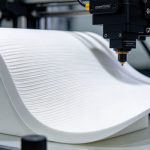
PETG-CF is widely used for functional 3D printing, but achieving consistent results sometimes requires adjustments to printing conditions. Moisture, nozzle wear, extrusion settings, and bed adhesion can all affect print quality.
If you experience unexpected defects when printing PETG-CF, understanding their causes can help you identify the right adjustments. Here are seven common PETG-CF printing problems and practical ways to solve them.
Why Does PETG-CF Filament Produce Popping Sounds and Bubbles?
Popping sounds, small bubbles, and rough extrusion during printing may indicate that the filament has absorbed moisture. When moisture turns into steam inside the hotend, it can disrupt extrusion and leave small holes or an uneven surface.
How to fix it:
- Dry the filament according to the manufacturer’s recommended temperature and duration.
- Store opened spools in airtight bags or dry storage containers.
- Use desiccant to help control moisture.
- Avoid leaving filament exposed to humid air for extended periods.
Proper filament storage and drying can help maintain consistent extrusion quality.
Why Does PETG-CF Keep Clogging My Nozzle?
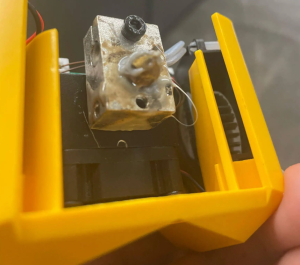
PETG-CF contains carbon fiber additives that make it more abrasive than standard PETG. A nozzle that is too small, worn, or unsuitable for composite materials may contribute to inconsistent extrusion and clogging.A suitable nozzle helps reduce wear and supports more consistent material flow.
 |
How to fix it:
|
How Can I Reduce Stringing with PETG-CF?
Stringing occurs when thin plastic strands form between separate sections of a printed model. With PETG-CF, this issue is often associated with excessive nozzle temperature, unsuitable retraction settings, or moisture in the filament.
Common causes and adjustments:
| Possible Cause | Recommended Adjustment |
|---|---|
| High nozzle temperature | Lower the temperature gradually within the recommended range |
| Insufficient retraction | Fine-tune retraction distance and speed |
| Wet filament | Dry the filament according to the manufacturer’s guidelines |
| Poor travel settings | Optimize travel speed and movement paths |
Printing Tip: Start with a temperature and retraction test before changing multiple slicer settings. This helps identify the main cause without introducing additional extrusion problems.
Why Are My PETG-CF Layers Separating?
Layer separation happens when adjacent printed layers fail to bond properly. It can result in visible gaps, weak sections, or cracks along the printed part.
Unlike surface defects, poor layer adhesion can directly affect the structural reliability of functional components.
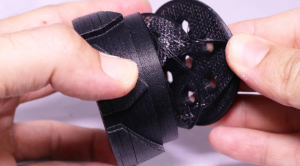 Check these three printing factors:
- Nozzle Temperature: If the temperature is too low, the extruded material may not bond sufficiently with the previous layer. Check the recommended temperature range for your PETG-CF filament.
- Cooling Settings: Excessive part cooling can reduce interlayer bonding. Adjust the cooling fan settings according to the model’s geometry and printing conditions.
- Printing Speed: Printing too quickly may limit the time available for proper layer bonding. Try reducing the speed and compare the results.
Quick Check: If the layers separate easily when bending or handling the printed part, review temperature, cooling, and extrusion consistency before increasing infill or wall thickness.
Why Does My PETG-CF Print Have Rough or Uneven Surfaces?
A rough or inconsistent surface may indicate problems with extrusion, filament condition, nozzle wear, or printing parameters.
Not all surface defects have the same cause. Use the following guide to narrow down the problem:
| Visible Defect | What to Check |
|---|---|
| Small bubbles or pits | Filament moisture and drying condition |
| Uneven extrusion lines | Filament feeding and extrusion settings |
| Rough or inconsistent texture | Nozzle condition and printing temperature |
| Random blobs or excess material | Retraction and temperature settings |
Carbon fiber reinforced filaments are abrasive, so regular brass nozzles may wear faster during extended printing. A hardened steel or other wear-resistant nozzle is generally recommended.
Maintenance Tip: Inspect the nozzle periodically and replace it when wear affects extrusion consistency. Also, make sure the filament is properly stored and dried when necessary.
Why Does My PETG-CF Print Warp or Lift at the Corners?
Warping occurs when the edges or corners of a printed part lift away from the build plate during cooling. Large flat models and uneven temperature conditions can make this problem more noticeable.
Try these adjustments in order:
- Prepare the Build Plate: Clean the surface and verify that it is suitable for PETG-CF.
- Check Bed Temperature: Use the manufacturer’s recommended temperature rather than relying on generic PETG settings.
- Control Cooling: Avoid excessive cooling during the initial layers.
- Improve First-Layer Contact: Check bed leveling and Z-offset.
- Use a Brim: Add a brim to models with large footprints or corners that are prone to lifting.
Important: Avoid changing every parameter at once. Adjust one setting, print a small test, and compare the results to identify which change improves adhesion and reduces warping.
Final Thoughts: Get More Consistent Results with PETG-CF
Most PETG-CF printing problems can be traced to moisture, nozzle condition, extrusion settings, or bed adhesion. Rather than changing every parameter at once, identify the defect, adjust one setting at a time, and run a small test print.
For better results, always follow the recommended printing parameters for your specific PETG-CF filament and printer.
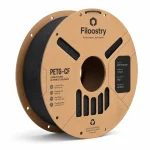
Looking for reliable material for functional 3D printing? Explore the 3D-Filoostry PETG-CF filament range to learn more about available product specifications and printing recommendations.